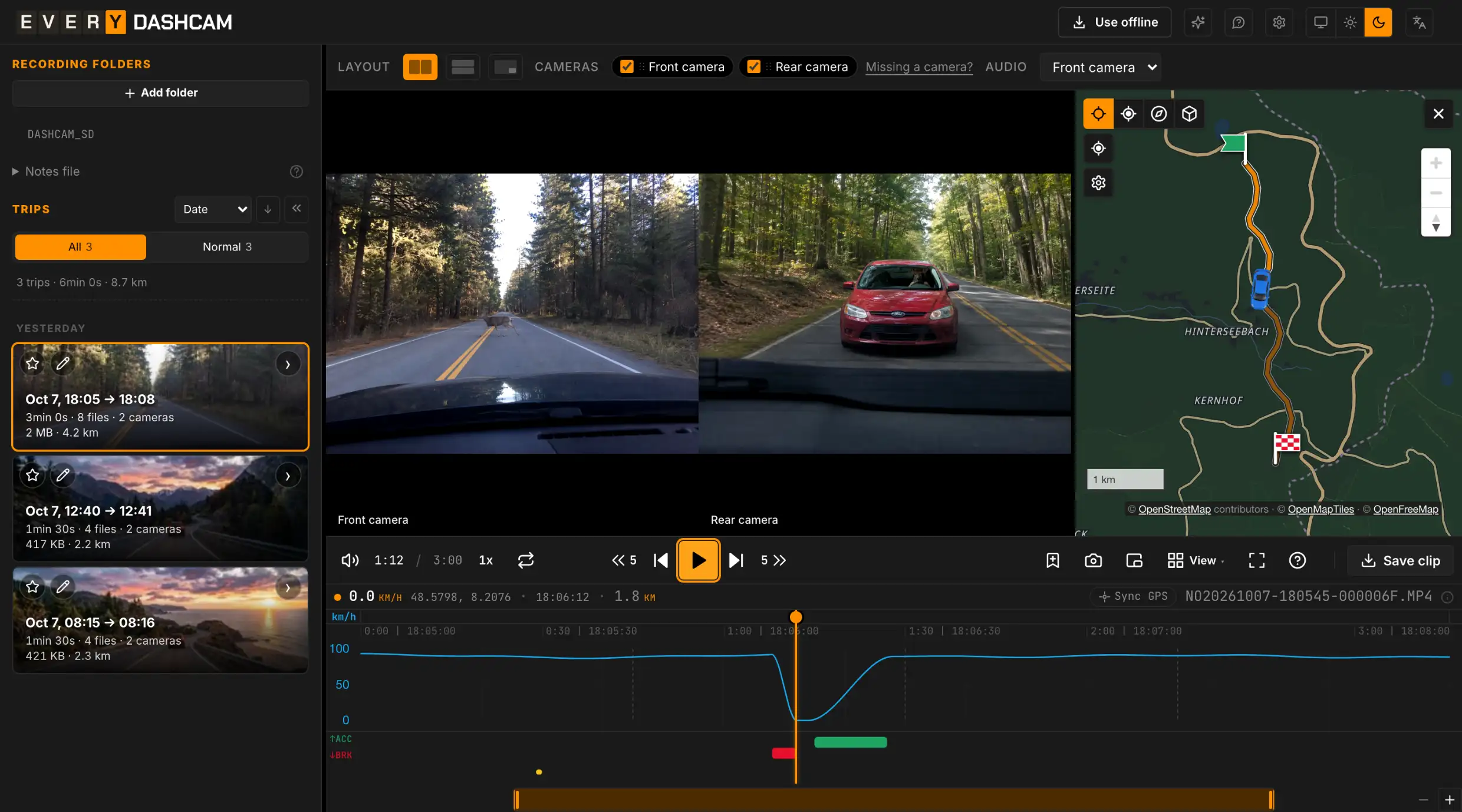
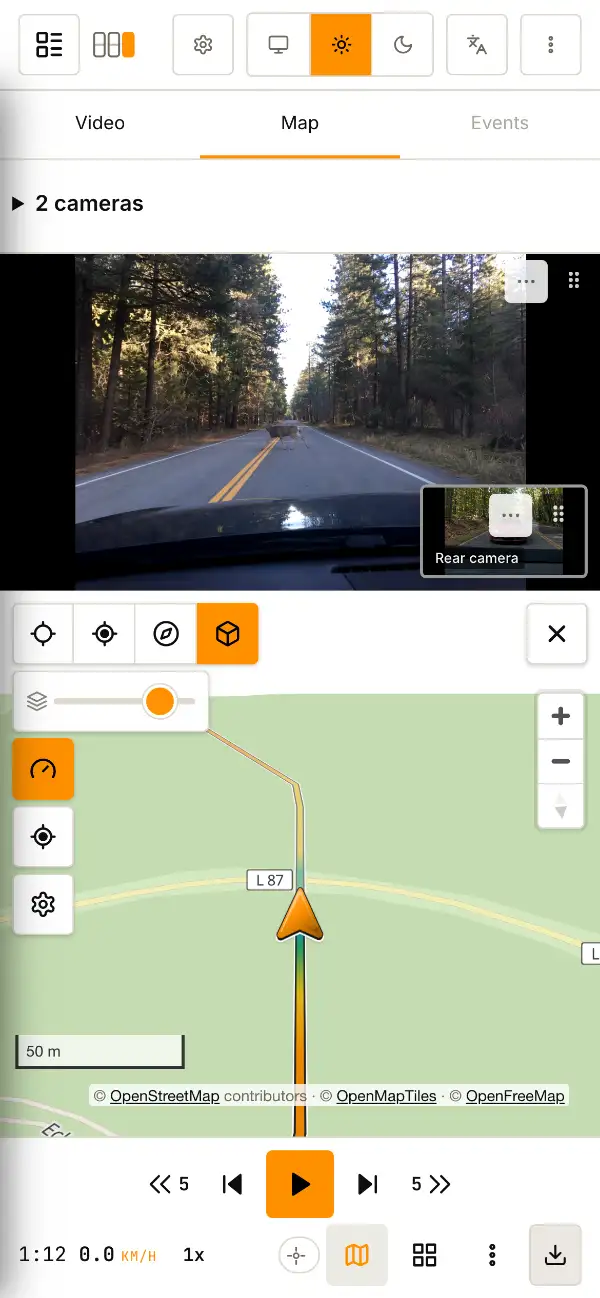
Dashcam player in your browser — map, speed, events.
The whole drive, start to finish, as one trip.
Take out the SD card
From the dashcam into your device. Card reader, USB or OTG — anything works.
Drop the folderPick the folder
The whole card folder — anywhere on the page. Or via the button above.The whole card folder — via the button above.
Watch
Video, route on the map, speed and events — all on one screen with a shared timeline.
- Trips, not clipsMinute-long clips join into one continuous trip — one timeline, one route. Any stretch saves as a single MP4.
- Many dashcam brands.mp4 .mov .ts files open as-is — no drivers, no vendor software.
- Speed and eventsHard braking and impacts are marked on the chart. Click a mark to jump to that moment.
- All cameras at onceFront, rear, cabin — in sync. Enlarge any of them.
- Edit, combine & exportTrim, combine cameras into one video and burn speed, coordinates or a moving map onto the export. GPS inside the file or as a separate .gpx.
- Hide plates & facesYou can blur a license plate or a face before sharing — the cover follows the object as it moves.
On your computer, tablet or phone
No installs, no plugins, no drivers.
Recordings in MP4, MOV or TS from most dashcams — 70mai, Viofo, BlackVue, GoPro, Garmin, Vantrue, Thinkware, Nextbase, REDTIGER, NAVITEL, Mio MiVue, Navman MiVue, FITCAMX and more. GPS and events — the app reads them straight from the video and the files next to it, no setup. All supported brands →
- Windows
- macOS
- Linux
- Android
- iOS
- Chrome
- Edge
- Opera
- Brave
- Vivaldi
- Arc
- Yandex Browser
- Firefox
- Safari
Playback depends on your browser and recording format. Editing and export work best in Chrome and other Chromium-based browsers.
Short answers
Which dashcams are supported?
Which devices and browsers does it work on?
Are my recordings uploaded anywhere?
Can I watch separate clips as one trip?
Can I save a clip and hide plates or faces?
Trips or cameras won't join, or GPS is missing?
Is it free? How can I help?
0 of 0